If an iPhone does not appear in Android’s Quick Share list, first check whether the Android model supports AirDrop interoperability. Having Quick Share alone does not establish that. Google also documents a QR-code route for sending files to an iPhone through a browser, but that route needs internet access.
This guide separates those two choices using Google and Apple documentation checked on 14 November 2026. It applies to readers in India and elsewhere with the supported features; it is not a hands-on test or a claim that every handset has received the same rollout.
Choose the route before changing settings
Use Google’s Android-to-iPhone compatibility list to check your exact handset. Manufacturer names are not enough: support for one Galaxy or OnePlus model does not establish support for every phone from that company.
There is also a documentation wrinkle: Google’s product page lists Pixel 9a, while the receiving section of its help page excludes that model. We therefore cannot give Pixel 9a owners an unqualified promise of transfers in both directions. Check the sending and receiving instructions separately.
For example, imagine two friends exchanging holiday photos. If the Android handset supports the direct route, they can follow the AirDrop steps below. If it does not, repeatedly changing the iPhone’s visibility will not add that capability to the Android phone. Look for the QR alternative instead.
Send a photo directly to an iPhone
- Keep both phones nearby. Apple’s preparation checklist calls for Wi-Fi and Bluetooth to be enabled and Personal Hotspot disconnected.
- On iPhone, open Control Center, press and hold the connectivity controls, then select AirDrop and its temporary everyone-visible option.
- On Android, select the photo, open the sharing menu and choose Quick Share. Select the nearby iPhone; its owner must accept the request.
Google additionally tells Samsung users to enable sharing with Apple devices in Quick Share settings. For the reverse direction on compatible hardware, put Android’s Quick Share into Receive mode, then select that phone from the iPhone’s AirDrop picker. See Google’s illustrated transfer instructions.
Use the QR option when direct sharing is unavailable
On Android, choose the files in Quick Share and select its QR-code option. The iPhone owner scans that code and opens the resulting page to download the files. Both devices need internet access.
According to Google’s Quick Share help, this route uploads end-to-end encrypted files to Google servers for a 24-hour download window without using the sender’s personal Google Drive storage. Mobile-data charges can apply. Treat it as an internet transfer when deciding whether to send a large video on a limited data allowance.
Confirm the file, then close discovery
Ask the recipient to open the received photo before deleting or moving the original. A visible device name proves discovery, not that the intended file has arrived.
Apple says its temporary visibility setting reverts after ten minutes: to contacts-only when signed in, or receiving-off otherwise. You can change it sooner through the same controls. Apple’s AirDrop instructions explain those settings. Exit Android’s Receive mode when you finish; Google says remaining on that screen makes the device visible to people nearby.
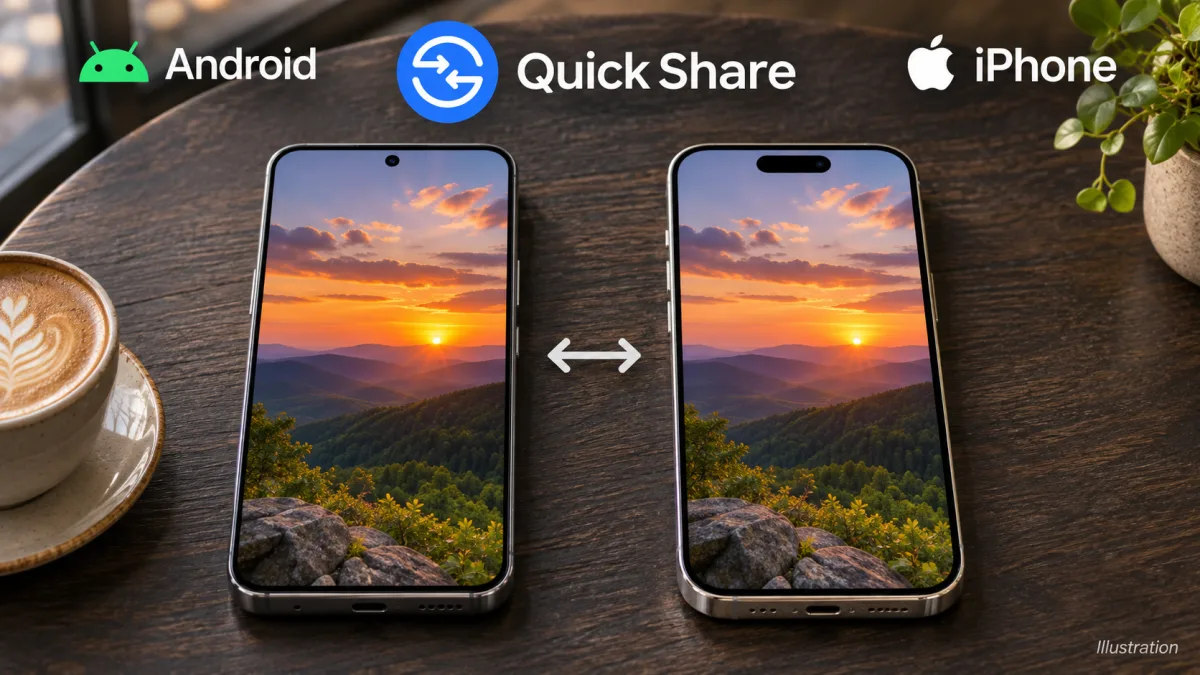
Cover: AI-generated editorial illustration by TechPopDaily showing Android and iPhone photo sharing with Quick Share branding. It is not a screenshot or evidence of a tested transfer.