
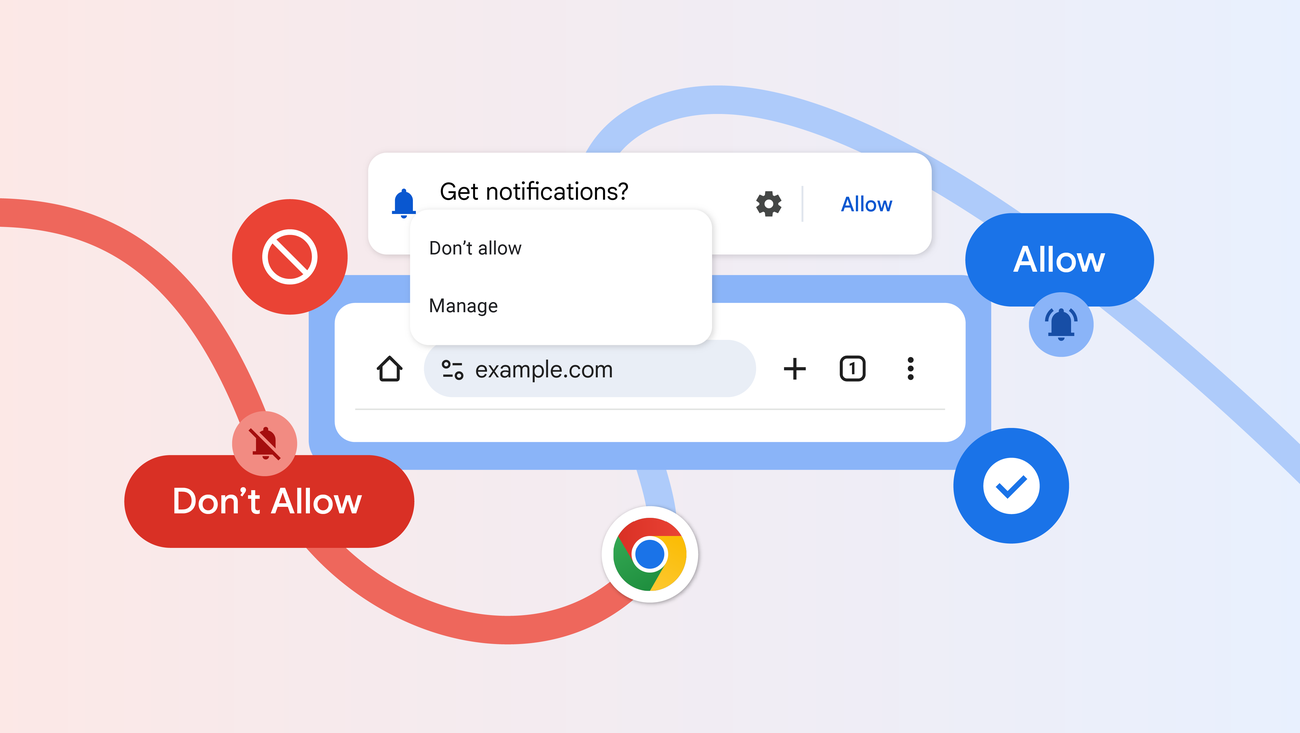
If one website keeps interrupting you through Chrome, block that site’s notification permission first. Turning off every Chrome notification can also hide reminders you wanted to keep. The useful distinction is between a website’s permission inside Chrome and the phone or computer’s controls for the whole app.
This guide follows Google’s current help instructions for desktop and Android. It is a documentation-based walkthrough, checked on November 14, 2026. Menu wording can differ across devices.
On a computer, block the website by address
Open Chrome’s three-dot menu, choose Settings → Privacy and security → Site Settings → Notifications. You can also type chrome://settings/content/notifications in Chrome’s address bar. Under Not allowed to send notifications, select Add, enter the website’s address and confirm. Check the domain shown on the notification so you block the sender you intended.
For example, if a shopping site is sending sales alerts while your calendar sends meeting reminders, adding the shopping domain to the blocked list lets you address that sender specifically. Keep a note of the domain you changed so you can reverse the decision if needed. Google’s desktop notification instructions.
On Android, look for Unsubscribe on the notification
Google says some devices offer Unsubscribe directly on a Chrome site notification. Swipe down to view the notification and use that control when it appears. If Chrome has flagged a notification as deceptive or spam, its warning can also offer a reporting option after you unsubscribe. Google says reporting sends the notification content and site URL to Google.
For an ordinary trusted site whose alerts you want to change, Google documents More → Site controls → Permissions while visiting that site. The all-site control is under Settings → Site settings → Notifications. Check which level you are changing before switching it off. If you are dealing with a suspicious sender, use the notification’s unsubscribe option rather than following a link inside its message. Google’s Android notification instructions.
What if useful notifications have stopped?
Chrome can remove notification permissions automatically when a site has been unused or identified as disruptive. Google says automatically removed permissions can be reviewed and restored through its safety controls. If you intentionally rely on a site’s alerts, inspect its current permission before assuming the site stopped sending them. Restore only the access you want. Google’s explanation of automatic notification protections.
Check what kind of interruption remains
A new browser window or an advertisement inside the page is a different symptom from a site notification appearing in your device’s notification area. Google’s notification help page links to separate pop-up controls. If the interruption continues, record where it appears and which app or domain is named. That observation helps you choose the next setting without repeatedly changing unrelated permissions.
Cover image: Google’s published Chrome notification-permission illustration. It shows the browser and its allow/block choice; individual devices may display different controls.


