
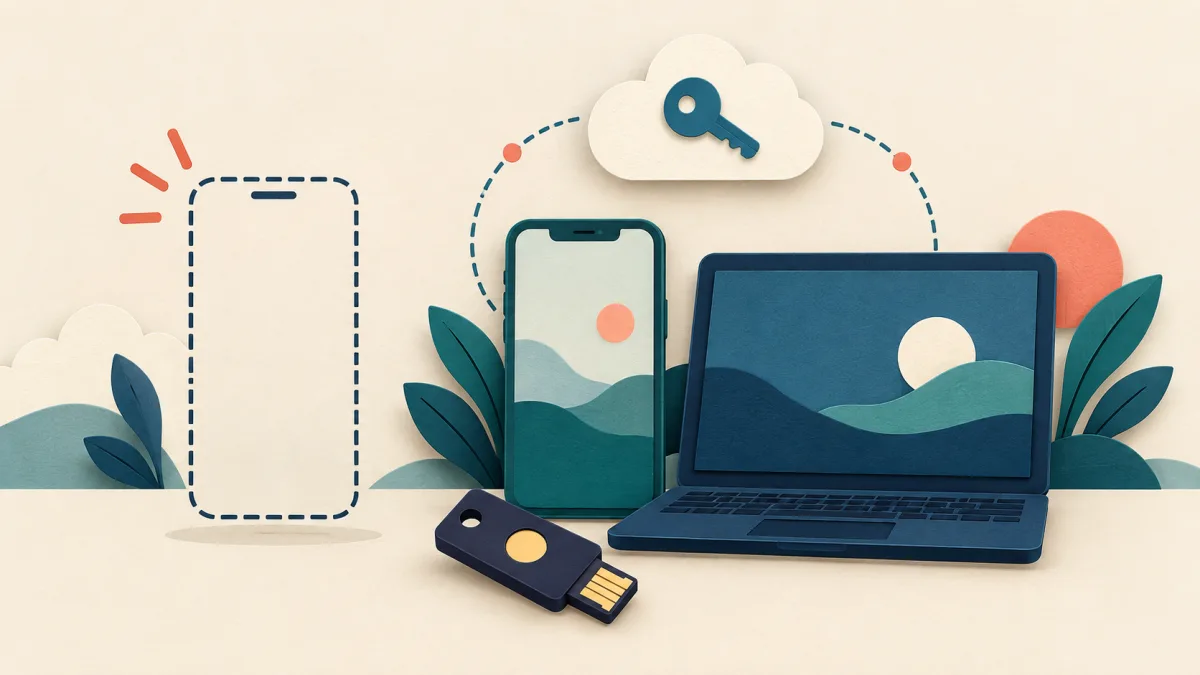
Losing your phone does not automatically mean losing your passkeys. You may still be able to sign in from another device, but the answer depends on where you saved them and whether you can recover access to that password manager.
That is the detail worth checking before you replace a phone, reset it, or discover an empty pocket. A passkey can make everyday sign-in easier while leaving you with a recovery process you have never tried.
If your phone is already missing
Start by protecting the device. Use Google’s lost-device guidance or Apple’s Find My instructions from a device you can access. Apple recommends marking a missing iPhone as lost; that depends on Find My having been enabled beforehand. Contact your mobile operator about protecting your number, too.
Then work out which of the situations below applies. Avoid deleting or resetting a password manager just because the first sign-in attempt fails.
The question that matters: where did you save the passkey?
A passkey is a digital credential for an account. Your fingerprint, face, or device PIN can authorise its use; the fingerprint itself is not the passkey.
The FIDO Alliance distinguishes two kinds:
- Synced passkeys can become available on other devices through the provider that stores them. You still need to satisfy that provider’s sign-in and recovery checks.
- Device-bound passkeys stay on one device or hardware security key. If that is the only credential you registered and you lose it, you need another sign-in method or the website’s account-recovery process.
The brand of your phone alone does not tell you which arrangement you have. Check the password manager or storage option you selected when creating the passkey.
If you use Google Password Manager
Google says passkeys saved in Google Password Manager are backed up and synced with your Google Account. On a supported replacement device, using the same account is part of restoring access. You may also need your Google Password Manager PIN or the relevant Android screen-lock credential.
Those requirements make a difference: knowing your Google Account password is not necessarily enough to unlock the encrypted passkeys.
There is also an important distinction between a passkey for signing in to Google and passkeys stored by Google Password Manager for other websites. Recovering access to one website does not, by itself, restore the whole collection.
Do not confuse a PIN reset with deleting your passkeys
Google’s PIN recovery instructions describe changing a forgotten Google Password Manager PIN from a qualifying non-Android device where you previously used the manager. Availability depends on your setup.
The separate option to reset your passkeys deletes them all. It is not a restore button. You would need to create replacement passkeys for the affected websites after regaining access to those accounts.
If you use Apple Passwords and iCloud Keychain
Apple says passkeys saved with iCloud Keychain sync across your Apple devices using end-to-end encryption. Another device already set up with the same account and syncing can therefore be useful when your iPhone is missing.
Recovery after losing every device is more involved. Apple documents checks involving the Apple Account password, a message to a registered phone number, and the previous device passcode. Follow the recovery prompts for your account rather than assuming a new iPhone will restore everything automatically.
If you chose a different password manager on your iPhone, use that provider’s recovery instructions instead.
A replacement SIM is only one part of recovery
For readers in India used to receiving an OTP on a registered mobile number, this is an easy distinction to miss: restoring access to that number is not the same as restoring a passkey.
A replacement SIM can help you receive messages used in an account-recovery check. It does not, on its own, restore the credentials stored by your password manager. The same distinction applies to US readers using SMS verification.
Think of these as separate jobs: secure the missing phone, recover your mobile number where needed, regain access to the password manager, and deal with any website that needs its own recovery process.
Make a backup plan before you need it
You do not need to memorise the technical standards. You need to know how you would reach your important accounts without your main phone.
- Identify the provider. Check where the passkey for your main email account is saved. Do the same for a few accounts you would need urgently.
- Check a second route. Where the service supports it, register another passkey on a separate device or security key, or set up its supported recovery option. A second credential stored only on the same missing phone is a weak fallback.
- Keep recovery information reachable. If a service supplies backup codes, store them securely somewhere you can access without that phone. Check that recovery email addresses and phone numbers are current.
- Try the route while you still have access. From another device you own, confirm that you can sign in without relying on the main phone. Keep your existing session and credentials intact during this check.
A useful personal note contains the account name, the password manager, and the alternative route—not a bundle of passwords and recovery codes in an unprotected document.
Passkeys still need a recovery plan
For Google Accounts, adding a passkey does not remove existing recovery methods. Google also documents Try another way as the option for returning to other sign-in choices when a passkey is unavailable. What works will depend on what is available on your account.
Once you regain access, follow the service’s instructions to remove credentials associated with the lost device and review its sessions. Do not apply Google’s device-removal steps blindly to an iPhone: Apple warns that removing a missing device from Find My removes Activation Lock.
The most useful preparation is one small rehearsal: check how you would sign in tomorrow if today’s phone were gone. Fix the missing recovery step while you still have the device in your hand.
Based on official Google, Apple, and FIDO documentation checked on 28 September 2026. This is a documentation-based guide, not a hands-on test of every recovery flow. Options vary by service, device, and account setup.
Explore more cybersecurity coverage from TechPopDaily.